Overview
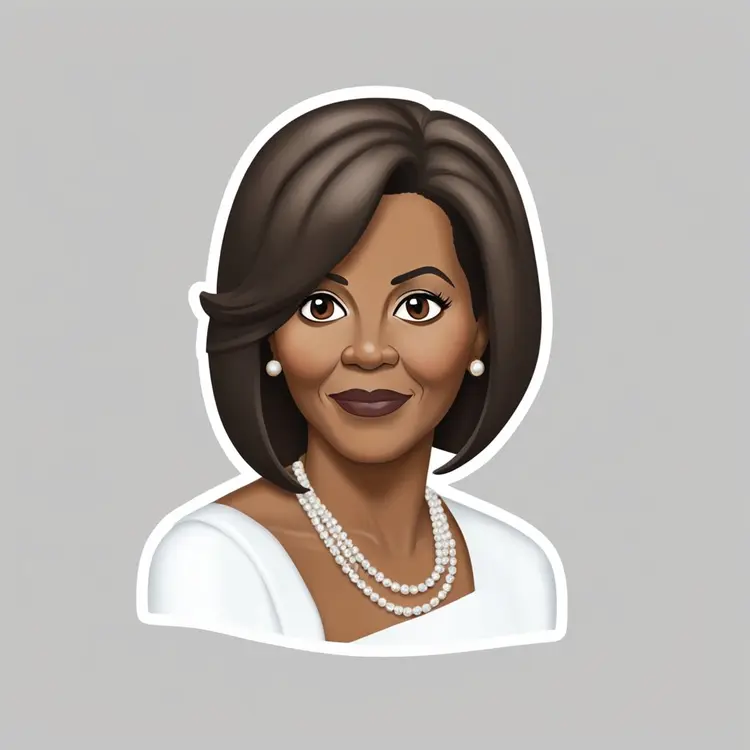
SDXL Emoji generates images in the visual style of Apple's emoji set from a plain text prompt. The model was fine-tuned specifically on that rounded, glossy, high-contrast aesthetic, so what comes out actually resembles something you would tap in a chat rather than a generic cartoon. If you have tried asking a standard image generator for an emoji-style result and gotten back a photo-realistic object with no resemblance to the format, this is the model that solves that. On Picasso IA, you get access to it without writing a line of code, managing API credentials, or worrying about running out of credits. Type what you want, adjust the settings, and download the result.
How It Works
- Type a description of the emoji you want, such as "a grinning planet wearing headphones" or "a sleepy cat sitting in a teacup"
- Set the number of outputs, image dimensions, and guidance scale if you want more control over how closely the model follows your prompt
- Upload a reference image to activate image-to-image mode, which shifts an existing photo toward the emoji visual style
- Use the negative prompt field to push unwanted elements out of the output
- Download the finished image file and use it in any app, document, or design tool you work with
Frequently Asked Questions
Do I need programming skills or technical knowledge to use this?
No, just open SDXL Emoji on Picasso IA, adjust the settings you want, and hit generate.
Is it free to try?
Yes, there is no cost to start generating. Open the model, type a prompt, and the output is yours without any payment or account setup required.
How long does it take to get a result?
Most outputs finish in under 20 seconds. Adding a refiner step increases generation time but can sharpen detail in compositions with multiple elements or complex backgrounds.
Are there any limits on how many images I can generate?
No. There are no per-generation credits or usage quotas for SDXL Emoji on Picasso IA. You can iterate as many times as the project requires without hitting any cap.
What output formats are supported?
The model produces standard image files you can download and use in any design tool, messaging platform, or document without additional conversion.
Can I control the style or output quality?
Yes. The guidance scale controls how strictly the model follows your prompt. The scheduler setting affects rendering style. Prompt strength in image-to-image mode determines how much the original photo carries through.
What if the result does not match what I had in mind?
Adjust the prompt wording, lower or raise the guidance scale, or switch to a different scheduler. Running with a new seed gives a different interpretation of the same text, so a few iterations typically get you to the result you need.